The Best Mobile Emulator for Chrome in 2026
Everyone has a favorite mobile emulator, and everyone thinks theirs is the best. Here's what happens when you actually put them side-by-side for a week of client work.
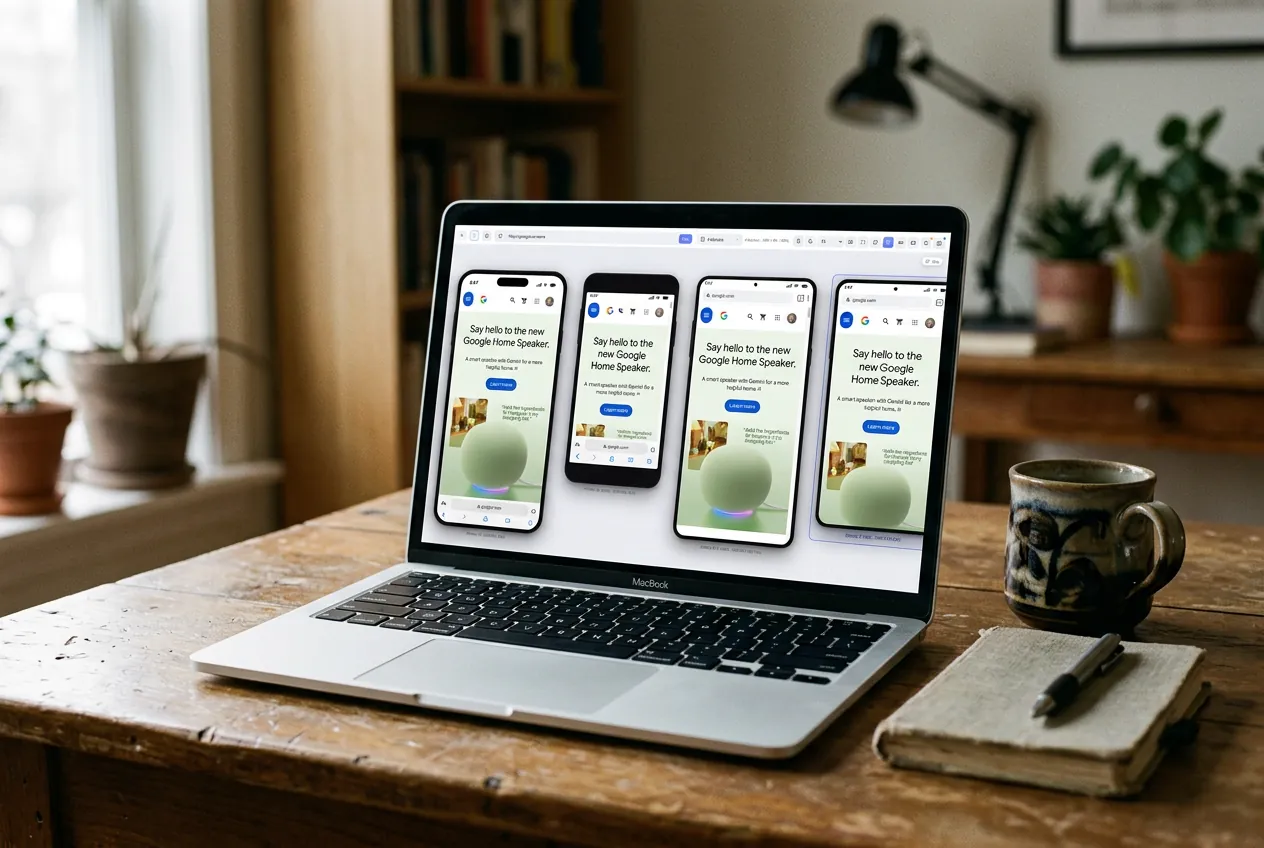
A "mobile emulator" is any tool that shows you what a website looks like on a phone or tablet, without needing the actual device. For Chrome users, there are roughly four categories worth talking about — and one of them (spoiler: the built-in one) isn't actually an emulator at all.
1. Chrome DevTools Device Mode — the free default
You already have it. Hit F12, click the little phone icon, done. It's a resized viewport with a spoofed user-agent, which is not the same thing as an emulator — but for 80% of "does my nav collapse at 375px" checks, it's all you need.
Good for: Fast breakpoint checks during active development, network throttling, Lighthouse audits.
Bad for: Anything you'd show a client. No device frame, no realistic status bar, generic outline that says "this is a wireframe" instead of "this is a phone."
Price: Free, built in.
2. Responsively App — the multi-device dashboard
Responsively is an open-source desktop app (not an extension) that shows your site across 5+ device sizes at once, side by side. It's popular with front-end engineers who want to catch layout drift across breakpoints without switching devices in a dropdown.
Good for: Design QA across many breakpoints simultaneously.
Bad for: Screenshots — the frames are stylized outlines, not realistic devices. And because it's a separate app, it doesn't have your browser cookies, extensions, or logged-in sessions.
Price: Free / open source.
3. MobileReady — the presentation-ready simulator
Full disclosure: this is us. MobileReady is a Chrome (and Firefox / Edge) extension that wraps any tab in photorealistic device frames — iPhone 15 Pro with the Dynamic Island, Galaxy S24 with curved edges, Pixel 8, iPad Air, foldables, over 70 devices. It also does HD screenshots with the frame baked in, alignment rulers, live CSS inspection, and one-click device switching.
Good for: Client demos, portfolio shots, marketing screenshots, designers who want a realistic preview without leaving the browser. Works on localhost, staging, and production because it runs inside your existing tab.
Bad for: Deep engineering — we don't replace DevTools, and we don't try to. You'll still open the network tab in Chrome for real debugging.
Price: Free tier is generous, paid plans start low. See pricing.
4. BrowserStack / LambdaTest — real device cloud
These aren't emulators, they're remote-control sessions on real physical phones in a data center. You get pixel-perfect accuracy because it is a real phone. You also get 300ms of lag, occasional session drops, and a bill.
Good for: Release-blocking QA, iOS-specific bug reproduction, testing on old Android versions you don't own.
Bad for: Daily driver work. It's too slow and too expensive to be your first port of call.
Price: $30–$200+ per user per month.
Which one should you pick?
Honest recommendation based on what you're doing:
- Frontend dev debugging layout: DevTools. It's free and it's right there.
- Freelancer or agency doing client work: MobileReady — the screenshots and framed previews pay for themselves the first time you drop one into a Figma deck.
- Designer previewing across breakpoints: Responsively for side-by-side, MobileReady for polished single-device previews.
- QA engineer at a company shipping to millions of phones: BrowserStack, layered on top of the others.
The trap: picking one and stopping
The best answer is usually "two tools, not one." DevTools for engineering, MobileReady (or similar) for anything you're going to show a human, and real devices in your pocket for the final gut-check. Nobody ships good mobile experiences with a single emulator — they ship them with layered testing that catches different classes of bugs at different stages.
For the difference between DevTools and MobileReady specifically, we wrote a full comparison with a feature-by-feature breakdown. Worth a read if you're deciding which one to default to.
Skip the setup. Just install MobileReady.
Turn any browser tab into a real iPhone, Pixel, iPad, or Galaxy in one click. Free to install, no card required.