How to Test Localhost on a Real Mobile Device (5 Ways That Work)
Your dev server is happily humming at http://localhost:3000. Your phone has no idea what that is. Here are five real ways to bridge that gap, roughly ordered from easiest to most bulletproof.
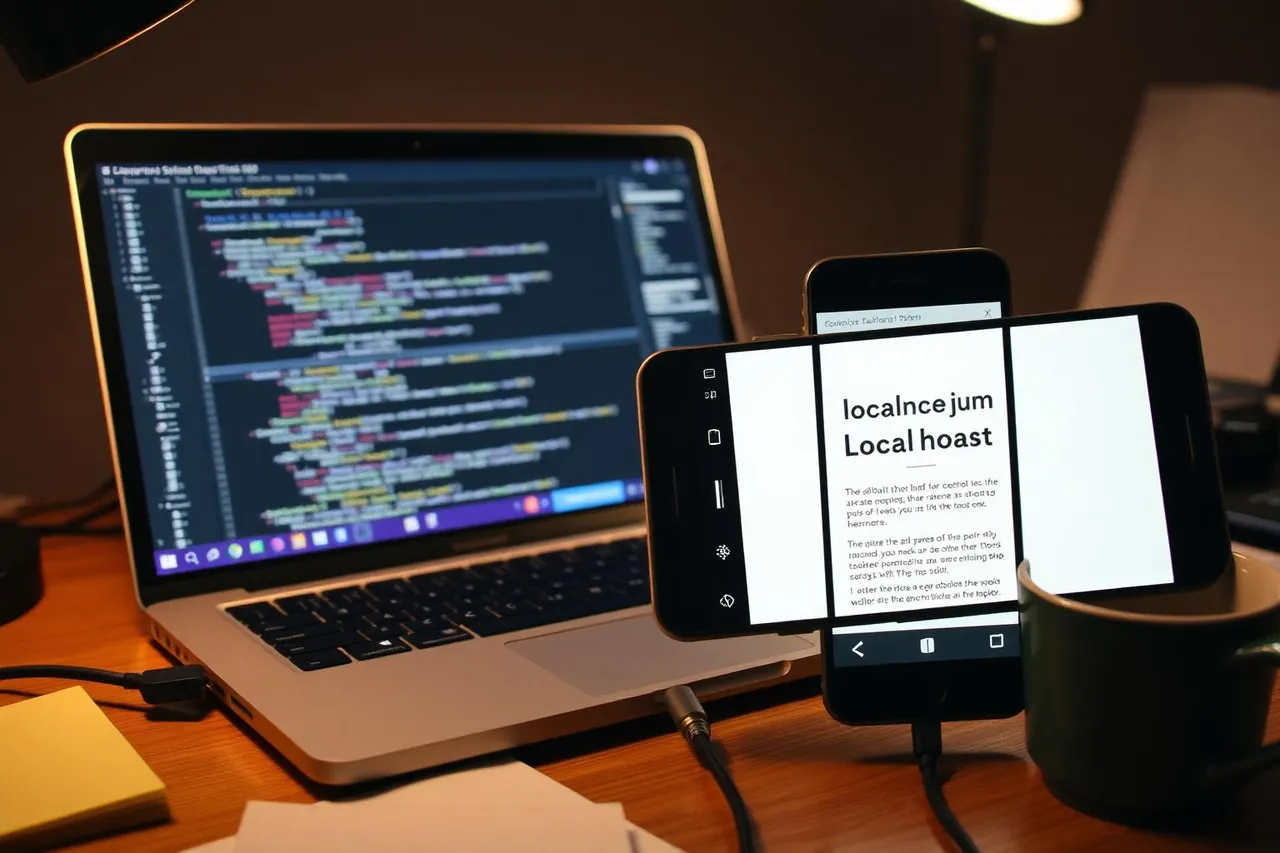
Every web developer hits this wall eventually. You've built something beautiful, it's running on localhost:3000, and you want to see it on your phone. Except your phone doesn't know what "localhost" means — localhost is your laptop, not the phone. So how do you get one to see the other?
Here are five ways, from "works in 30 seconds" to "works even behind a hostile corporate firewall in a coffee shop bathroom".
Method 1: Use your LAN IP address (30 seconds, most of the time)
Both your laptop and your phone are on the same Wi-Fi, right? Then your laptop has an IP address that your phone can actually reach. On macOS or Linux, run ifconfig (or ip a). On Windows, run ipconfig. Look for something like 192.168.1.42.
Now, on your phone, open the browser and go to http://192.168.1.42:3000. If your dev server is listening on all interfaces, you'll see your site. Done.
Gotcha: Vite, Next.js dev, and Create React App all default to listening on localhost only, which means only your laptop can reach them. Start them with --host (Vite) or -H 0.0.0.0(Next.js) to bind to all interfaces. Otherwise your phone will just spin.
Method 2: A tunnel (ngrok, cloudflared, tailscale funnel)
When you're not on the same network — coffee shop Wi-Fi that blocks device-to-device traffic, a client's guest network, testing from a phone on cellular — LAN tricks fall apart. Enter tunnels.
Install ngrok, run ngrok http 3000, and it hands you back a public HTTPS URL like https://abc123.ngrok.io. That URL works from anywhere in the world, including your phone on cellular. Cloudflare Tunnel and Tailscale Funnel do the same thing with slightly different tradeoffs.
Bonus: HTTPS out of the box, which means you can test service workers, PWAs, and any feature that requires a secure context — something you can't do with a raw LAN IP.
Method 3: Chrome DevTools remote debugging (Android)
This one is under-used and genuinely magical. Plug an Android phone into your laptop via USB, enable USB debugging on the phone, open chrome://inspect on your laptop, and enable "Port forwarding" with port 3000 → localhost:3000.
Now on the phone, browsing to http://localhost:3000 hits your laptop's dev server through the USB cable. You also get a full remote DevTools instance so you can inspect elements, debug JavaScript, and watch network requests happening on the phone — from your laptop.
Method 4: Safari remote debugging (iPhone)
Same idea, iOS version. Plug the iPhone into a Mac via USB, enable Web Inspector in iOS Safari's advanced settings, open Safari on the Mac, and the iPhone's tabs show up under Develop → [Your iPhone].
You still need to point the iPhone at your laptop somehow — usually via method 1 (LAN IP) or method 2 (tunnel). But once it's loaded, you can inspect DOM, run console commands, and debug the exact page on the exact phone, remotely from the Mac.
Method 5: A mobile simulator (the "I don't want to leave my laptop" option)
Half the time, you don't really need to touch the phone. You just want to see if the layout works at iPhone widths and doesn't fall apart at 375px. MobileReady and other mobile simulators run inside your browser, so they can preview anything the browser can reach — including localhost. Point the simulator at http://localhost:3000, pick a device from the dropdown, and you're looking at your dev site inside an iPhone or Pixel frame in about two seconds.
You should still test on physical hardware eventually. But for daily "does this layout work" checks, a simulator is faster than any tunnel, LAN trick, or USB cable. It's the difference between checking your work every 30 seconds and checking it every 30 minutes.
Which one should you use?
- Quickest layout check: Mobile simulator extension.
- Same Wi-Fi, real phone: LAN IP +
--host. - Different network / cellular / demoing to a client: ngrok or Cloudflare Tunnel.
- Deep debugging on Android: chrome://inspect + port forwarding.
- Deep debugging on iOS: Safari Web Inspector via USB.
Bonus: HTTPS on localhost
Some features (service workers, camera access, geolocation) refuse to work over plain http://. If you're testing those on mobile, either use a tunnel (which provides HTTPS automatically) or set up mkcert to give your local dev server a trusted certificate. It's a one-time setup that saves years of "why doesn't this work on my phone" frustration.
Testing on mobile shouldn't be an afterthought at the end of the sprint. Set up one of these methods once, bookmark it, and start checking your work on a real screen size the same day you build it. The bugs you catch on Tuesday are much cheaper than the ones a client catches on Friday.
Skip the setup. Just install MobileReady.
Turn any browser tab into a real iPhone, Pixel, iPad, or Galaxy in one click. Free to install, no card required.