Captcha Help: Test Mobile Layouts Without Captchas Blocking You
Captchas are supposed to stop bots. During mobile QA they mostly stop you. Here's the thinking behind the Captcha Help button — and how one tap gets you back to the layout you were trying to check.

You open a site in the simulator, switch to an iPhone 15 width, and instead of the hero section you get a grey box asking you to confirm you're human. You tap it. It reloads. It asks again. Twenty minutes later you still haven't seen the thing you were trying to check.
That loop is the reason the Captcha Help button exists.
The shield sits in the MobileReady toolbar, between Simulator and Rulers. One tap toggles captcha handling for the page you are previewing.
Why captchas break during mobile testing
A captcha is a trust check. It looks at the user agent, the viewport, the referrer, how the page was loaded, whether it's inside a frame, how fast the interaction happened, and dozens of other signals. Mobile testing changes almost every one of those signals at once — and that is exactly when the check gets nervous.
The common failure modes we see:
- Frame and referrer mismatches. Many captcha widgets refuse to render inside a frame, or only allow a specific list of parent origins. In a preview view, the check quietly fails instead of showing a challenge.
- Layout collapse at small widths. Widgets have a fixed minimum width. Drop below it and the challenge overflows its container, pushes the form sideways, or covers the submit button — which then reads as a responsive bug in your own CSS when it isn't one.
- Repeated challenges. Switching device presets reloads the page with a new user agent and screen size. To the captcha, that looks like a fresh suspicious visitor every single time, so you get challenged on every switch.
- Staging and preview domains. Site keys are usually registered for the production hostname. On a staging URL the widget throws an error, and the form behind it is unusable.
- Interstitial walls. Bot-protection layers put a full-page check in front of the site. You never reach the page you wanted to inspect, so there is nothing to QA.
None of these are bugs in your layout. They are bugs in the interaction between an incompletely configured captcha and a legitimate testing context. But they cost real hours, and worse, they hide the actual responsive issues sitting behind the overlay.
What the Captcha Help button does
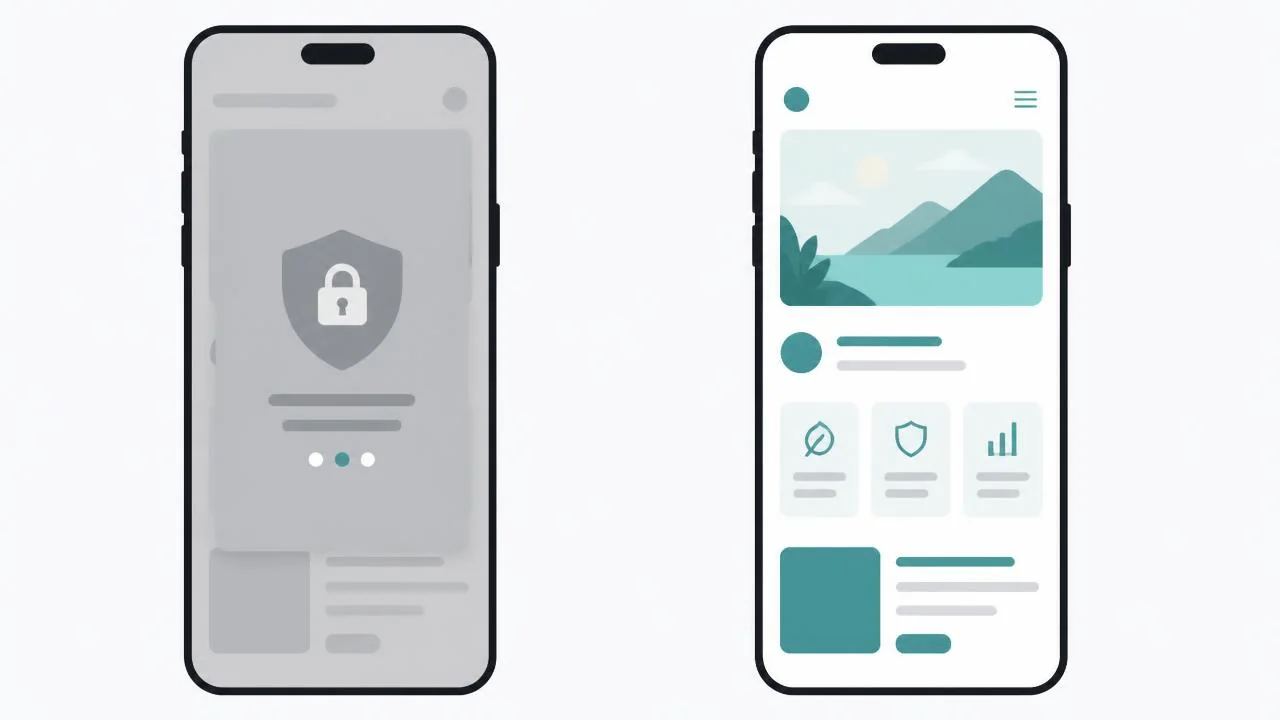
Tapping the shield tells MobileReady to neutralise captcha and access checks for the page currently loaded in the preview. The blocking widget or interstitial is suppressed for that preview session, the page renders its real content, and you can get on with checking spacing, tap targets, and breakpoints.
A few things it deliberately does not do:
- It does not touch your live site or your visitors. The change applies to the preview you're looking at, in your browser, for as long as that preview is open.
- It does not remove your protection or edit your site's code. Nothing is deployed, nothing is saved, and your production captcha keeps doing its job for everyone else.
- It does not solve challenges for you. This is a testing convenience, not a captcha solver.
Toggle it off and the page behaves exactly as it did before — which is useful when you want to verify the challenge itself renders correctly at mobile widths.
How to use it
- Open the page you want to test in the MobileReady simulator.
- Pick your device preset — iPhone, Pixel, iPad, whatever you're QA'ing for.
- If a challenge or access wall appears, tap the shield labelled Captcha Help in the toolbar.
- Reload the preview if it doesn't clear immediately; some checks run before the page paints.
- Continue your responsiveness pass. Tap the shield again whenever you want the original behaviour back.
The idea behind it
Every feature in MobileReady starts from the same question: what stops someone from finishing a mobile check in under a minute? Slow device switching, guessing at CSS values, hunting for font sizes — we've chipped away at each of those with device presets, the Webpage Specs panel, and the typography audit. Captchas were the last stubborn one, because the block isn't technical difficulty, it's an interruption you can't argue with.
We also think this one quietly makes sites better. When a captcha is easy to step around during testing, teams actually look at the pages behind it — checkout forms, sign-up flows, contact pages — the exact screens where mobile layout bugs cost the most money. Those pages tend to be the least-tested on a site precisely because they're the hardest to reach repeatedly.
While you're in there: fix the captcha too
Captcha Help gets you unblocked, but if your challenge misbehaves on mobile, real visitors are hitting it as well. Worth checking:
- Use the widget's compact or invisible mode on small viewports instead of the full-size checkbox.
- Give the widget its own container with
overflow: visibleand no fixed width, so it can't push your form off-screen. - Register every hostname you use — production, staging, and preview — against the site key.
- Confirm the challenge is reachable by keyboard and screen reader, and that the audio alternative works.
- Never place the widget over the submit button on narrow screens. Put it above the button with real spacing.
Fair use
Captcha Help is built for testing sites you're responsible for or have permission to test. It's a QA tool for developers, designers, and agencies checking their own work — not a way around someone else's access controls. Use it on your builds, your clients' builds, and staging environments you've been given access to.
The shield is in the toolbar of every MobileReady install, on the free plan included. If a captcha has ever eaten twenty minutes of your afternoon, install the extension and give it a tap.
Skip the setup. Just install MobileReady.
Turn any browser tab into a real iPhone, Pixel, iPad, or Galaxy in one click. Free to install, no card required.